Windows Dictation: How to Turn On Voice Typing in 10 & 11
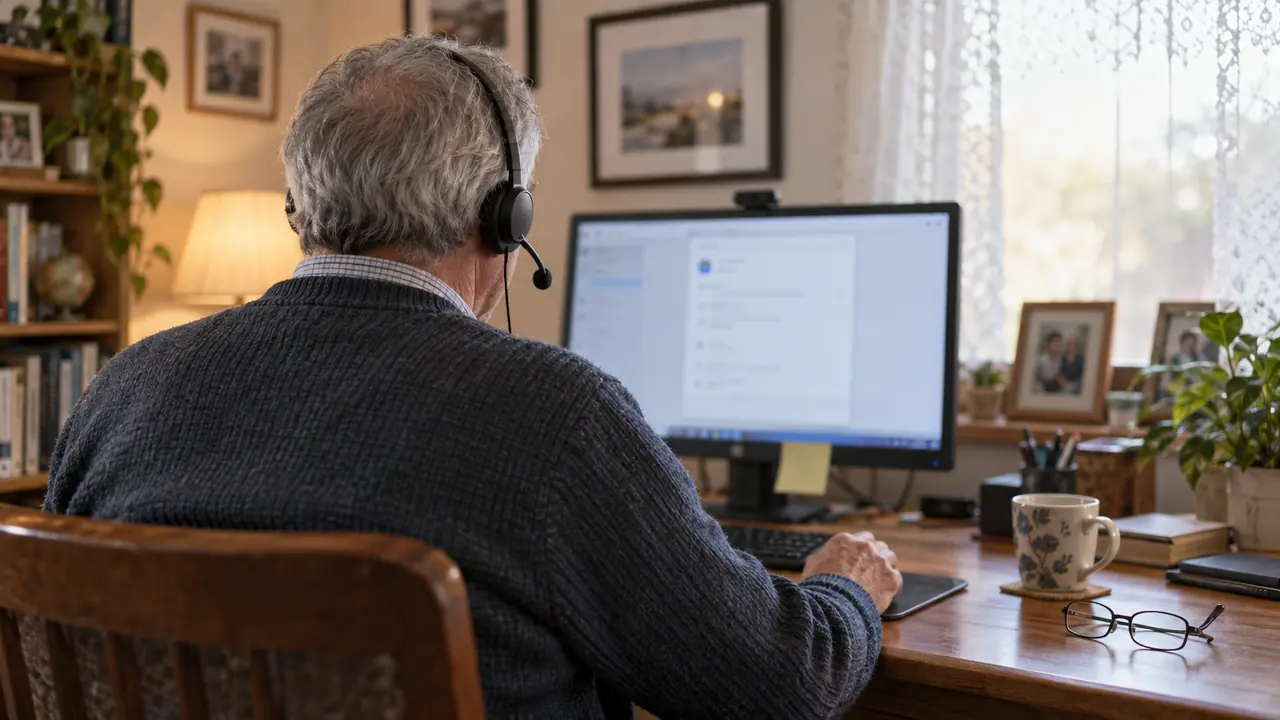
To dictate on Windows 10 or 11, place your cursor in any text field and press Windows + H: Windows dictation, called voice typing in Windows 11, is built in and free. You need a microphone and an internet connection, because Windows recognizes your speech online (Microsoft support). Without internet, Windows 11 (version 22H2 and later) offers voice access, a separate feature.
Typing remains the most common way to enter text on a computer. Yet voice dictation lets you write three to four times faster than typing, while reducing hand and wrist fatigue. Whether you are drafting emails, reports, or code, your voice is a powerful input tool.
This guide covers every voice dictation option available on Windows in 2026: the built-in solution, third-party alternatives, and modern tools like Ondula.
1. Windows Built-in Voice Dictation
Windows includes a built-in dictation feature called voice typing. There is nothing to install or turn on: here is how to use it.
How to Enable Dictation in Windows 11 and Windows 10
- Click in the text field where you want to write (a Word document, an email, the browser's address bar).
- Press Windows + H: the voice typing bar opens, with the microphone.
- Wait for "Listening...", then speak normally: the text appears where your cursor is.
- To stop, click the microphone button in the bar or say "stop listening" (in Windows 10, "stop dictation").
Windows 11 or Windows 10? The shortcut is the same, but not the language coverage: Windows 11 voice typing works in more than 30 languages, while Windows 10 dictation handles only a handful (English, French, German, Italian, Spanish, Brazilian Portuguese and Simplified Chinese), with voice commands in US English only (Microsoft support).
Nothing happens? Voice typing needs an internet connection and Windows' online speech recognition. Check that Online speech recognition is turned on in Settings > Privacy & security > Speech (Windows 11) or Settings > Privacy > Speech (Windows 10).
On a laptop, the steps are exactly the same. The built-in microphone is enough to get started, but a headset or a USB mic gives noticeably better results.
The older Windows Speech Recognition, which had to be turned on in Settings, was removed from Windows 11 in version 24H2 and replaced by voice access.
If the shortcut does nothing or shows an error, follow our troubleshooting guide: Windows voice typing not working, 10 fixes.
Voice Typing Settings and Language
Click the gear icon in the voice typing bar to open its settings:
- Voice typing launcher: shows a microphone button whenever you click in a text box
- Automatic punctuation: adds periods and commas for you
- Select default microphone: chooses which mic voice typing listens to
- Wait time before acting: gives you more time before a voice command runs
Voice typing listens in your keyboard (input) language, not in the display language. To dictate in another language, add it under Settings > Time & language > Language & region > Add a language, then switch to it with Windows + Spacebar before pressing Windows + H.
Voice Typing Commands
A few commands you can say while voice typing is listening:
- "period", "comma", "question mark", "new line", "new paragraph"
- "delete that" to erase what you just said, "select that" to select it
- "press Enter", "press Backspace", "undo that"
- "stop listening" to turn voice typing off
What Windows Native Dictation Can Do
- Dictate text in most Microsoft applications
- Basic voice commands: "new paragraph", "period", "comma"
- Dictate without internet through voice access in Windows 11 (version 22H2 and later), a separate feature from Windows + H
Limitations of the Native Solution
Despite improvements over the years, Windows dictation has significant limitations:
- Average accuracy: transcription errors are common, especially with accents or in noisy environments
- Limited languages: not all languages receive the same quality of support
- Inconsistent compatibility: dictation does not work in every application, particularly some professional software
- Internet required: voice typing (Windows + H) relies on Microsoft's online speech recognition
- Imperfect automatic punctuation: Windows 11 offers an automatic punctuation option, but you often still have to dictate punctuation marks
- Latency: a noticeable delay between speaking and text appearing
For occasional use, the native dictation may be sufficient. But for daily professional use, its limitations quickly become frustrating.
Try a more accurate alternative -- Download Ondula for free
2. Third-Party Alternatives
Several third-party solutions exist to supplement or replace Windows dictation.
Dragon NaturallySpeaking
Dragon is the legacy voice dictation software, developed by Nuance (acquired by Microsoft).
Advantages:
- Accuracy of up to 99% from first use, with no voice training required (according to Nuance)
- Customizable vocabulary
- Advanced navigation commands
Disadvantages:
- High price: $699 for Dragon Professional v16 at US resellers (checked September 2026), with Nuance no longer listing a price
- Heavy software, complex setup
- Infrequent updates
Google Docs -- Voice Typing
Google Docs offers a built-in voice typing feature, accessible via Tools > Voice typing (Ctrl + Shift + S). Our Google Docs voice typing guide covers setup, commands and fixes.
Advantages:
- Free
- Good accuracy
- Supports many languages
Disadvantages:
- Works only in Google Docs, in Chrome, Edge or Safari (not Firefox)
- Cannot dictate in Word, Slack, an email client, or any other application
- Privacy: recognition runs through the browser's speech service (Google's in Chrome), which decides how your voice is processed
Whisper Locally
Whisper, OpenAI's transcription model, can be installed locally on your machine.
Advantages:
- Open source model, free
- Very good accuracy
Disadvantages:
- Technical installation (Python, command line, dependencies)
- Requires a powerful GPU for real-time performance
- No standard graphical interface
- No keyboard shortcut or automatic text injection
- Manual update maintenance
These alternatives solve some problems of the native dictation, but none combines accuracy, simplicity, and universal compatibility.
Discover a solution that combines everything
3. Ondula: Modern Voice Dictation for Windows
Ondula is a voice dictation application designed to be fast, accurate, and universal on Windows.
Why Ondula Is Different
- Works everywhere: Word, Gmail, Slack, VS Code, browsers, any text field on Windows
- One keyboard shortcut: press, speak, text appears where your cursor is
- Ultra-fast transcription: state-of-the-art speech recognition model, a quick text return
- More than 100 languages in Cloud mode, 25 European languages in Local mode
- Two processing modes: in the cloud, audio is sent only for the time needed to transcribe it and is not retained by Ondula; in local mode, your voice never leaves the PC
- Simple installation: no complex configuration, no dependencies
How to Install Ondula
Installation takes just a few steps:
- Go to ondula.ai/download to open Ondula's Microsoft Store listing
- Install Ondula -- the single app includes both Cloud and Local modes
- Open Ondula -- the application sits in your system tray
- Configure your microphone -- Ondula automatically detects your default microphone
- Choose your keyboard shortcut -- a simple shortcut is preconfigured by default
- Dictate -- place your cursor where you want, press the shortcut, speak
That is it. No account required to get started (10 minutes included), and a free account adds 10 more minutes every week, refilled automatically with no end date.
Pricing
| Plan | Price | Quota |
|---|---|---|
| Anonymous | Free | 10 min (no account) |
| Free | Free | 10 min per week, for life |
| Cloud | 3.90 EUR/month excluding tax | 50h / month |
The Cloud plan at 3.90 EUR/month excluding tax provides 50 hours of monthly dictation, more than enough for intensive professional use.
Get started for free -- Download Ondula
4. Comparison Overview
| Criteria | Windows Native | Dragon | Google Docs | Local Whisper | Ondula |
|---|---|---|---|---|---|
| Price | Free | $699 | Free | Free | 3.90 EUR/mo excluding tax |
| Accuracy | Average | Very good | Good | Very good | Very good |
| Installation | Built-in | Complex | None | Technical | Straightforward |
| Works everywhere | No | Yes | No (Docs only) | No | Yes |
| Privacy | Fair | Good | Low | Excellent | Excellent |
| Keyboard shortcut | Win+H | Yes | Ctrl+Shift+S | No | Yes |
| Languages | Limited | Limited | Many | Many | 100+ in Cloud mode, 25 in Local mode |
5. Tips for Effective Voice Dictation
Regardless of the solution you choose, these best practices will improve your experience:
- Use a quality microphone: a headset with a built-in mic or a dedicated USB microphone noticeably improves accuracy
- Speak at a natural pace: not too fast, not too slow. Articulate normally
- Reduce ambient noise: close the window, move away from noise sources
- Dictate full sentences: transcription engines understand context better with complete sentences
- Review and correct: even the best tools make occasional errors, a quick review is always worthwhile
FAQ
Is Windows voice dictation free?
Yes, the voice dictation feature built into Windows is entirely free. You can activate it with the Windows + H shortcut. However, its accuracy is limited and it does not work in every application. Alternatives like Ondula offer better accuracy with a free tier providing 10 minutes every week, refilled automatically.
How do I turn on voice typing in Windows 10?
Click in a text field and press Windows + H: in Windows 10 the feature is called dictation, and it needs an internet connection. If nothing happens, turn on Online speech recognition in Settings > Privacy > Speech. Windows 10 dictation supports only a few languages, whereas Windows 11 voice typing covers many more.
What is the best voice dictation app for Windows?
For professional use, Ondula stands out with its combination of accuracy, speed, and universal compatibility. Unlike native dictation or Google Docs, Ondula works in any Windows application. Its Cloud plan costs 3.90 EUR/month excluding tax for 50 hours of dictation.
Does voice dictation work in Word and Gmail?
Windows native dictation works in Word and in Gmail (via the browser), as long as your cursor is in a text field. Google Docs voice typing only works within Google Docs. Ondula works everywhere: Word, Gmail, Slack, VS Code, browsers, and any application that accepts text input.
Is my voice data protected?
With Ondula, yes. In local mode, your voice never leaves your PC. In cloud mode, audio is sent only for the time needed to transcribe it and is not retained by Ondula.
How much does voice dictation on Windows cost?
The native solution is free but limited. Dragon Professional v16 sells for $699 at US resellers (checked September 2026), and Nuance no longer lists a price on its website. Ondula offers a free tier (10 minutes every week, for life) and a Cloud plan at 3.90 EUR/month excluding tax providing 50 hours of dictation, making it the most accessible option for professional use.
Ready to save time with voice dictation? Download Ondula for free and start dictating in your Windows apps.
Ready to try voice dictation?
Download Ondula for free and start dictating in your Windows apps.
Download Ondula